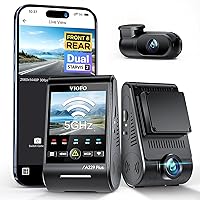
How to View Dash Cam Footage on Your Phone
To view dash cam footage on your phone, connect to the camera’s Wi-Fi and open its companion app, then select a saved recording. Without a phone connection, use a compatible memory-card reader.
On this page (8 sections)
- How to view dash cam footage on your phone using Wi-Fi
- Where do you find and play a recording?
- How do you download and share a dash cam video?
- Which dash cam suits frequent phone viewing?
- What if your dash cam doesn't connect to your phone?
- How do you keep important footage safe?
- Why is phone playback slow or blurry?
- How should you choose a phone-viewing setup?
To view dash cam footage on your phone, connect to the camera’s Wi-Fi and open its companion app, or use a compatible memory-card reader. Select a saved recording, download it, and check that the copy plays before sharing it.
Keep the car parked while you work. Most direct Wi-Fi connections require you to stay near the camera, so don't confuse phone access with remote viewing from anywhere.
How to view dash cam footage on your phone using Wi-Fi
Power on the camera, join its Wi-Fi network, and open the matching app. Use the network name and password shown in the camera’s menu or setup instructions.
- Install the companion app named in the camera manual.
- Enable Wi-Fi on the dash cam if it isn't already active.
- Follow the app’s pairing prompts or join the camera network through your phone’s Wi-Fi settings.
- Allow the permissions the app needs to find and connect to the camera.
- Open playback or the recording album.
A “no internet” warning can be normal because the camera network provides a local connection. Choose to stay connected if your phone offers that option.
If pairing fails, confirm that your phone hasn't switched back to home Wi-Fi, then reopen the app. Temporarily disable a VPN if it blocks local connections, and check any local-network or nearby-device permissions requested by the app.
For more connection options, see our guide to dash cams with Wi-Fi. If the camera isn't fitted yet, start with how to install a dash cam.
Where do you find and play a recording?
Open the app’s playback, album, or file list, then find the event by date and time. Live view shows the camera’s current view and isn't the same as opening a saved recording.
Check ordinary recordings and protected or emergency folders. On cameras with several channels, select the front, rear, or interior view as needed.
An event can span several short files, so inspect the clips before and after the moment you need. If the camera clock was wrong, search around the displayed time rather than assuming the recording is missing.
How do you view dash cam footage on a phone when a clip is missing?
Check the event folder, other camera channels, and nearby timestamps before removing the card. If the file still doesn't appear, inspect the card through a compatible reader or computer.
Loop recording replaces older, unprotected clips as storage fills. Save important footage promptly, and see what SD card a dash cam needs before changing cards.
How do you download and share a dash cam video?
Select the saved recording and choose download or save in the app. Keep the phone near the camera and leave the app open until the transfer finishes.
Allow enough phone storage for all the clips you need, including matching rear or interior footage. Downloading only the front view may leave out useful context.
Check the app’s local album, Photos, or Files for the saved copy. Disconnect from camera Wi-Fi and play it again to confirm you have a local file rather than a preview that still depends on the camera.
For sharing, reconnect to your normal internet connection and attach the saved file. Messaging apps may reduce video quality, so use an original-quality file transfer when small details matter.
Which dash cam suits frequent phone viewing?
Choose based on the views you need and the files you'll save, then compare app access and transfer speed. Buying another camera makes little sense if your current one already exports the clips you need.
Advertised maximum download speeds aren't fixed transfer times. File size, phone support, signal strength, and distance from the camera all affect the wait.
ROVE R2-4K Dual: for front-and-rear clips on iPhone or Android
The ROVE R2-4K Dual suits drivers who want front-and-rear recording with explicit iPhone and Android app support. Its ROVE app handles playback, downloads, settings, and firmware updates.
ROVE specifies dual-band Wi-Fi with downloads up to 20 MB/s. The camera includes a 128GB card and supports cards up to 1TB, which helps buyers who want more storage between overwritten clips.
The front image is captured at 2.5K and upscaled to 4K; the rear records at 1080P. Skip it if native 4K capture or an interior camera is a firm requirement.
REDTIGER F7NP: for drivers who want GPS details in the app
The REDTIGER F7NP suits drivers who want to review recordings alongside route, speed, and location data in Redtiger Cam. It records 4K front and 1080P rear footage and includes a 128GB card.
Its 5.8GHz Wi-Fi supports claimed downloads up to 20 MB/s. Choose it over a cabin camera system when road coverage is your priority, but skip it if you need an interior view.
If these first 2 options fit your needs, our ROVE R2-4K vs REDTIGER F7NP comparison covers their differences.
70mai 4K 3-Channel Dash Cam: for drivers who need cabin footage
The 70mai T800E suits rideshare or family drivers who need front, rear, and interior recordings. It captures 4K front video plus 1080P rear and interior video, with switchable infrared for the cabin camera.
70mai specifies Wi-Fi 6 transfers up to 10 MB/s through its app. A 64GB card is included, and storage support reaches 512GB.
Skip it if you only need road views and want fewer files to manage. It doesn't support 4G, so its Wi-Fi feature shouldn't be treated as remote access while you're away.
What if your dash cam doesn't connect to your phone?
Use a compatible memory-card reader when wireless access isn't available. You need a reader that matches the card, your phone’s connector, and the phone’s external-storage support.
Stop recording and power off the camera before removing its card. Connect the card through the reader, open your phone’s file browser, and copy the needed videos into phone storage.
A full-size SD adapter alone doesn't connect a microSD card to a phone. The SanDisk card below includes that adapter, but you'll still need a suitable reader.
The SanDisk 128GB High Endurance microSD suits drivers who need replacement or spare storage designed for repeated dash cam recording. It doesn't add Wi-Fi or change which video formats your phone can play.
Skip the extra card if your included card meets your needs, and confirm your camera’s card requirements before buying.
If a reader prompts you to format the card, cancel until your footage is safely copied. If a video won't open, try a compatible player or move the original file to a computer.
How do you keep important footage safe?
Keep the original file and a second backup, including the clips immediately before and after an event. A protected camera file helps prevent routine overwriting, but it isn't a separate backup.
Check that saved copies contain the full event and the correct camera views. Keep any trimmed or edited version separate from the original.
Avoid formatting the card until you've checked your copies. Follow the camera manual for routine formatting, and power off before handling the card to reduce the risk of file damage.
For footage recorded while parked, the camera also needs the right power setup. Read what dash cam parking mode does before expecting recordings with the engine off.
Why is phone playback slow or blurry?
Download the full file before judging image quality because a wireless preview may buffer or use a lower-quality stream. Keep the phone close to the camera and avoid switching apps during the transfer.
If a saved clip pauses or won't open, check that the download completed and that the phone supports its video format. A computer can help separate a playback problem from a damaged file.
If the file itself looks poor, clean the camera lens and windshield, then check camera aim and recording settings. Changing the viewing app can't recover details the camera didn't capture.
At setup, make a short recording while parked and confirm you can retrieve each camera view. Repeat that check after changing the card or updating firmware, rather than waiting until you need an incident clip.
How should you choose a phone-viewing setup?
For how to view dash cam footage on your phone, choose the companion app for frequent access and a card reader for occasional retrieval or connection problems. Keep a reader option in mind even if you normally use Wi-Fi.
Pick ROVE for its stated iPhone and Android support, REDTIGER for GPS details in its app, or 70mai when interior footage matters. Buy a spare endurance card only when your storage needs call for one.
Before replacing a working camera, try downloading a complete clip and opening it offline. For the wider buying decision, use how to choose a dash cam to match coverage, storage, and power needs to your car.
Frequently asked questions
How do I connect my dash cam to my phone?
Connect your phone to the powered camera’s Wi-Fi network, then open its companion app. Enable camera Wi-Fi first if needed, use the password in its setup instructions, and allow required connection permissions; a warning about no internet can be normal because this network provides local camera access.
Can I watch dash cam videos without Wi-Fi?
Yes, use a compatible card reader if your dash cam records to a removable memory card; power off the camera before removing the card, then connect it through a reader that fits your phone. Open the video in a file browser, provided your phone supports its format.
Why won't my dash cam connect to my phone?
Check camera power, enable its Wi-Fi, and confirm your phone joined the camera network rather than a saved home network; then check the app’s required permissions and reopen it. If your phone keeps leaving the connection, choose to stay connected without internet when that option appears.
How do I save dash cam footage to my phone?
Choose a saved recording in the camera app and select its download or save control; wait for completion, then check the app’s local album, Photos, or Files. Play the saved copy with camera Wi-Fi disconnected to confirm it transferred, and preserve the original plus a second backup.