6 Best Dash Cams With WiFi (October 2026)
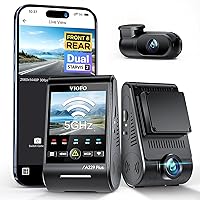
The best dash cams with WiFi include the ROVE R2-4K Dual for everyday commuters, the REDTIGER F7NP for road trip records, and the Affver 4K+2.5K Dash Cam for shared family cars.
On this page (9 sections)
- Which dash cams with WiFi fit different drivers?
- How do you choose WiFi speed for a dash cam?
- What should you check in a dash cam app?
- How should you install and set up a WiFi dash cam?
- How much memory card storage do you need?
- Do WiFi dash cams need a hardwire kit?
- How do you save useful footage after an incident?
- Which care habits and mistakes matter most?
- Which dash cam with WiFi should you choose?
The best dash cam with WiFi for most drivers is the ROVE R2-4K Dual, which combines front and rear recording with an app for saving clips and changing settings. Choose a different model when cabin coverage, rear resolution or a screen-free design matters more.
WiFi lets you get footage onto your phone without removing the memory card. Its real value is being able to find the right recording, save it and confirm you have a playable copy before leaving the car.
Our picks at a glance
-
1

-
2

-
3

- 4
 Best for rear road detailCheck it
 - 5
 Check it
TOOXYZ J13 3-Channel 4K Dash Cam
Best for rideshare drivers - 6
 Best for minimal windshield clutterCheck it
Which dash cams with WiFi fit different drivers?
ROVE is the first choice for everyday dual-camera use, while the other picks serve more specific needs. Decide which views you need before comparing download speeds, since faster transfers cannot replace a missing rear or cabin camera.
ROVE: a WiFi dash cam for daily commuting
ROVE R2-4K Dual
- Dual-band WiFi
- App firmware updates
- Front and rear cameras
- 128 GB card included
A strong fit for commuters who want road coverage in both directions and phone access to clips. Its front video is upscaled from 2.5K to 4K.
Pros
- App controls settings and firmware updates
- GPS records route and speed
- Supports cards up to 1 TB
Cons
- Front 4K is upscaled from 2.5K capture
- Parking mode requires a separate hardwire kit
The ROVE R2-4K Dual suits commuters who want front and rear coverage with several controls available on a phone. Its app handles viewing, downloads, camera settings and over-the-air firmware updates through 5.8 GHz or 2.4 GHz WiFi.
ROVE specifies downloads up to 20 MB/s. That makes it a sensible starting point if you expect to save recordings often rather than remove the card for each transfer.
The front camera captures at 2.5K and upscales to 4K, while the rear records at 1080p. Skip this model if native front 4K or equally high resolution in both directions is a firm requirement.
Its STARVIS 2 IMX675 front sensor and HDR address changing light, while GPS records route, location and speed information. ROVE's GPS Player provides a way to review that information on a PC or Mac.
Choose it for a balanced daily setup with app controls and room to expand storage up to 1 TB. Plan the rear cable route before fitting either camera, especially in a hatchback with a moving rear door.
REDTIGER: for reviewing road trips with GPS
REDTIGER F7NP
- 5.8 GHz WiFi
- GPS data in app
- 4K front and 1080p rear
- 128 GB card included
Suits drivers who want to review route, speed and location alongside their recordings in the app. A supercapacitor and included card round out the package.
Pros
- App shows GPS data
- Supercapacitor power design
- Supports cards up to 512 GB
Cons
- Parking modes require a separate hardwire kit
- Rear recording is 1080p rather than 4K
The REDTIGER F7NP suits drivers who want route, speed and location in the phone app alongside their clips. That is useful when you want to match a recording to a particular stretch of a longer journey.
The Redtiger Cam app also previews, replays and downloads video, and manages settings. Its 5.8 GHz connection supports transfers up to 20 MB/s, putting it among the faster options here by the stated maximum.
Recording is 4K front and 1080p rear, with a STARVIS 2 sensor and WDR and HDR features. Treat resolution as one part of the choice, since movement, glare and distance still affect readable detail.
The F7NP uses a supercapacitor, and REDTIGER backs it with an 18-month warranty. The brand also advises using original or officially recommended power accessories and allowing the camera to cool if it overheats.
Pick it for app-based trip review; skip it if high-resolution rear footage is your main goal. Our ROVE R2-4K vs REDTIGER F7NP comparison helps narrow the choice between these two daily-driver options.
Affver: for drivers who prefer on-camera menus
Affver 4K+2.5K Dash Cam
- 5 GHz WiFi 6
- 3.59 in IPS screen
- 4K front and 2.5K rear
- 64 GB card included
The larger screen gives drivers a way to use menus without pairing a phone each time. The upgraded A4 also records more rear detail than its earlier version.
Pros
- On-camera menus on a larger screen
- GPS playback in app or computer player
- Car charger includes an extra USB port
Cons
- Lower maximum transfer speed than the fastest picks
- Earlier versions have different rear recording and WiFi
The Affver 4K+2.5K Dash Cam suits a shared car where drivers may prefer on-camera controls to connecting a phone for menu changes. Its 3.59 in IPS screen gives those menus more room than a smaller display.
The upgraded A4 records 4K front and 2.5K rear video. Affver introduced that rear resolution and 5 GHz WiFi 6 with its June 1, 2026 upgrade, so confirm the version before ordering if older stock appears in your comparison.
Its stated download maximum is 10 MB/s. The WiFi 6 name does not make it the fastest transfer option in this group, so choose it for the screen and camera combination rather than the wireless label.
Built-in GPS supports journey playback through the app or a Windows or Mac player. The car charger also has an extra USB port, which helps if your vehicle has few charging outlets.
Choose Affver if you want phone transfers without making your phone the only control surface. Skip it if you routinely copy large batches of footage and your first priority is the highest stated transfer rate.
Aputeta: for giving rear footage equal priority
Aputeta 4K+4K Dual Dash Cam
- Dual-band WiFi
- 4K front and rear recording
- GPS positioning
- 128 GB card included
Choose it when rear recording deserves the same resolution as the front view. The app handles previews, downloads, playback and GPS data.
Pros
- Matching front and rear resolution
- App supports photo capture
- Supports cards up to 512 GB
Cons
- Parking mode requires a separate hardwiring kit
- No interior camera
The Aputeta 4K+4K Dual Dash Cam is the clearest fit here for drivers who want matching front and rear resolution. Both cameras record at 3840 x 2160, rather than pairing a higher-resolution front view with a lower-resolution rear view.
Its app supports previewing, playback, downloads, photo capture and GPS data. Dual-band WiFi offers a stated download maximum of 20 MB/s, which suits moving larger recordings onto a phone.
The rear camera uses a 160-degree view, while the front uses 170 degrees. Aim both carefully, since covering more of the scene does not mean every distant object fills enough pixels to identify.
Choose Aputeta when rear road detail takes priority over cabin coverage. Skip it if you only need a simple front view, since a second camera adds wiring and storage demands.
Our best 4K dash cams guide covers other resolution choices, while the GPS dash cam picks focus on route and speed features. Neither resolution nor GPS replaces saving the original recording after an incident.
TOOXYZ: for recording passengers and the road
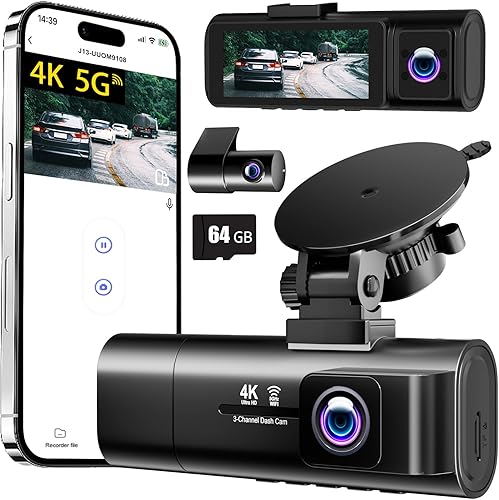
TOOXYZ J13 3-Channel 4K Dash Cam
- Viidure app connection
- Front, interior and rear cameras
- Infrared night vision
- 64 GB card included
Cabin recording makes this the pick for drivers who need an interior view as well as road footage. Basic app viewing and downloading do not require a paid membership.
Pros
- Three-channel recording
- Basic footage access without paid membership
- Supports cards up to 256 GB
Cons
- Some extra app features require membership
- Parking monitoring requires a separate kit
The TOOXYZ J13 suits rideshare drivers and others who need cabin footage as well as road coverage. It records 4K at the front and 1080p from both the interior and rear cameras, with infrared night vision among its features.
The Viidure app handles viewing, camera-view switching, playback, downloads and settings without a paid membership. Extras such as video speed adjustment, timeline viewing and cloud disk uploads require membership.
Its stated download maximum is 8 MB/s. Choose the third camera because you need its view, and allow more time when saving several recordings from the same event.
The J13 supports cards up to 256 GB with a Class 10-U3 requirement. More camera views create more files to manage, so make sure you save each relevant view instead of only the front clip.
Skip it if you have no reason to record passengers, since a dual-camera setup keeps the job simpler. Before recording cabin audio or passengers, check applicable consent rules.
For road coverage alone, our guide to front and rear dash cams is the more useful comparison.
galphi: for a compact front-only installation
galphi 4K Front Dash Cam
- 5 GHz WiFi
- Front camera only
- No display
- 32 GB card included
A compact choice for drivers who want front recording and prefer to review clips on a phone. There is no screen or rear camera to accommodate.
Pros
- Screen-free design
- Records without a phone connection
- Supports cards up to 256 GB
Cons
- Front camera only
- Camera WiFi and CarPlay or Android Auto cannot connect to the phone together
The galphi 4K Front Dash Cam suits drivers who want a small, screen-free front camera and are comfortable using a phone for footage review. It removes the rear-camera cable from the installation, but also leaves the rear view unrecorded.
Its 5 GHz WiFi supports downloads up to 8 MB/s. The camera starts recording when powered without a phone connected, so you do not need to pair it before every drive.
The included card is 32 GB, reflecting the change from the earlier bundle. It supports cards up to 256 GB, and galphi recommends Class 10, U3 and V30 or higher for expanded storage.
The camera's WiFi and CarPlay or Android Auto cannot connect to your phone at the same time. Keep your driving connection active on the road, then switch to the camera after parking.
Choose galphi if low windshield clutter matters more than a built-in screen or rear coverage. Skip it if you want to review menus without a phone, or if documenting incidents behind your car is central to your buying decision.
How do you choose WiFi speed for a dash cam?
Choose speed based on the files you expect to save, not the wireless name alone. A short event clip needs less transfer time than several long recordings from multiple cameras.
At the same recording settings, downloading only the relevant clip saves more time than copying an entire journey. Preview the timeline first, then select the files around the event.
What do WiFi dash cam download figures mean?
Download figures are maximum rates rather than promised everyday speeds. Phone hardware, app behavior, distance and connection conditions can all change the result.
For a 300 MB file, simple division gives about 15 seconds at 20 MB/s, 30 seconds at 10 MB/s or 38 seconds at 8 MB/s. Those estimates exclude connection time and other delays.
Do not confuse MB/s with Mbps, since bytes and bits are different units. Compare figures expressed in the same unit, and remember that camera resolution does not reveal the size of every saved clip.
A faster link is worth prioritizing for frequent downloads. For occasional evidence saving, clear file selection and an app that works with your phone may matter more.
What should you check in a dash cam app?
Check phone support, clip selection and local downloads before focusing on extra app tools. The essential task is saving a playable recording where you can find it after disconnecting from the camera.
Direct camera WiFi usually creates a nearby connection between your phone and the dash cam. It does not by itself provide internet service, automatic cloud backup or remote access from another location.
A phone may warn that the camera's network has no internet. Follow the camera's connection instructions rather than assuming that message means the camera is faulty.
Check that the app can show the camera view you need and locate recordings by time. GPS playback, firmware updates and settings controls are useful extras, but their availability differs between these models.
Before relying on the setup, download a sample clip while parked and play it after disconnecting. Our guide to viewing dash cam footage on your phone explains the connection and saving process.
Keep cabin footage and location records private when sharing files. Send the relevant evidence to the intended recipient instead of posting an entire journey with unrelated passengers or addresses.
How should you install and set up a WiFi dash cam?
Position the cameras, confirm their views and connect your phone before hiding cables. This lets you correct an angle or connection without pulling apart a finished installation.
Use the supplied or approved power accessories and read the camera's instructions first. Power requirements and connection methods are not interchangeable just because two cables use the same plug shape.
- Clean the mounting area and choose a position that preserves your view of the road.
- Temporarily power the camera and check the image before fixing the mount.
- Set the date, time and time zone, then follow the instructions for preparing the memory card.
- Connect the phone app and save a sample recording.
- Route cables safely and confirm that the cameras start recording when expected.
Keep the front lens within the area cleared by the wipers where practical. Aim for a useful road view, since too much sky can leave vehicles occupying only a small part of the frame.
For the rear camera, check the image with the hatch or trunk fully closed. Leave appropriate slack at moving joints, and keep the cable clear of hinges and sharp edges.
Do not place wires across airbag deployment paths or where they can catch pedals. Our dash cam installation guide covers placement and cable planning in more detail.
How much memory card storage do you need?
Choose storage for your recording channels and desired history, then use a card that meets the camera's requirements. WiFi changes how you retrieve files, not how much video the card can hold.
The included cards range from 32 GB to 128 GB. That is enough to begin setting up these cameras, but it does not establish a fixed number of recording hours.
Resolution, compression, clip settings and the number of active cameras affect storage use. Avoid estimating retention from card size alone, especially when comparing a front-only camera with a three-channel model.
Loop recording replaces older ordinary footage as space fills. Event protection helps preserve selected files, but it is not a substitute for copying important recordings elsewhere.
Choose a card intended for repeated video recording that also meets the camera's speed and capacity rules. Follow the camera's formatting instructions rather than assuming a card from another device is ready to use.
Our dash cam SD card guide explains card selection and care. Back up needed clips before formatting, and power down as instructed before removing the card.
Do WiFi dash cams need a hardwire kit?
WiFi does not require hardwiring, but parking recording needs a suitable power source after the engine is off. Decide whether you want driving footage only or parked coverage before choosing the installation.
ROVE, REDTIGER, Aputeta, TOOXYZ and galphi require separate hardwire kits for parking monitoring. Confirm Affver's parking power requirements and compatible accessories before planning that setup.
Parking modes also behave differently. ROVE offers time-lapse, motion and collision options, while REDTIGER offers time-lapse and collision-triggered recording.
Aputeta describes a protected 1-minute clip after a parked event. TOOXYZ describes a 30-second collision clip with time-lapse disabled, while galphi uses time-lapse parking recording.
Choose time-lapse for a condensed record of activity and collision-triggered recording when your main concern is an impact. Do not assume every trigger captures the same amount of footage before an event.
See our guides to dash cams with parking mode and hardwiring a dash cam for installation choices. Also consider how dash cams affect a car battery before leaving a camera powered while parked.
How do you save useful footage after an incident?
Protect the relevant clips and copy them off the camera as soon as it is safe. A recording that remains only on the memory card can be lost through later overwriting, card damage or accidental formatting.
Stop somewhere safe before using the app or camera controls. Use the event-protection function according to the instructions, then locate footage using the time of the incident.
Save the lead-up and aftermath, including adjacent files if the event crosses a clip boundary. With multiple cameras, download every relevant view rather than assuming the front recording contains the whole story.
Keep an original, unedited copy before trimming or adding captions. Confirm that the downloaded file plays and make another copy on a separate device or storage service when possible.
If WiFi is unreliable, use the card and a compatible reader after shutting the camera down correctly. Learning that backup route before you need it keeps a connection problem from blocking access to evidence.
Which care habits and mistakes matter most?
Check recording health and keep both the lens and glass clean. A working phone connection is useful, but the camera still needs a clear view, stable power and a healthy card to capture usable footage.
Review occasional recordings from each camera, including nighttime footage. Look for a shifted mount, reflections, a blocked lens or a rear view obscured by dirt.
Wipe lenses gently with an appropriate clean cloth and keep the windshield clear inside and out. Avoid touching the lens while adjusting the mount, since a fingerprint can spread glare across an otherwise clear scene.
Do not handle a phone preview while driving. Set the angle while parked, then let the camera record without keeping its live view on your phone.
Avoid leaving every minor bump permanently protected. Review unwanted event files according to the camera instructions, since protected recordings can reduce the space available for ordinary footage.
Inspect cables and connectors for wear or loose fit, especially after cleaning the car or moving seats. Follow the brand's heat guidance, and do not cover the camera with material that traps heat.
A high resolution setting cannot guarantee readable plates in every frame. Distance, motion, glare, dirty glass and camera angle all matter, so preserve the full sequence rather than judging evidence from one paused image.
Which dash cam with WiFi should you choose?
Choose your dash cam with WiFi by coverage first, then by how you will retrieve footage. A camera that records the right view and gives you a saved copy serves you better than a faster connection attached to the wrong setup.
- Choose ROVE for daily front and rear recording with phone settings and firmware controls, provided you accept upscaled front video.
- Choose REDTIGER when reviewing GPS information in the app is central to how you use recordings.
- Choose Affver when several drivers share the car and a larger menu screen is useful.
- Choose Aputeta when rear footage deserves the same recording resolution as the front.
- Choose TOOXYZ when passenger or cabin recording is essential.
- Choose galphi when you want a compact front-only camera and are happy to review footage through your phone.
Before finishing the installation, save one clip and play it away from the camera's WiFi. For help weighing coverage, power and storage together, use our guide to choosing a dash cam.
Our top 3 picks at a glance
-
1
-
2
-
3
Frequently asked questions
What does WiFi do on a dash cam?
WiFi connects your phone directly to the camera for functions such as video previews, downloads and settings changes; it usually serves as a nearby connection rather than internet access. Save a clip to your phone before disconnecting if you need to play or share it away from the car.
Do you need WiFi on a dash cam?
No, WiFi is a convenience for accessing footage rather than a requirement for ordinary recording; the galphi, for example, starts recording when powered without a phone connection. Choose WiFi if you want clips on your phone; prioritize coverage and suitable storage if you expect to use a computer instead.
How fast should dash cam WiFi be?
Faster WiFi matters most when you regularly download long clips or footage from multiple cameras; compare the stated download rate rather than choosing by the WiFi name alone. Your phone, distance from the camera and connection conditions affect actual speed, so allow extra time beyond the best-case transfer estimate.
Can a dash cam use WiFi and CarPlay at the same time?
Connection limits depend on the camera and your phone setup; the galphi cannot connect its WiFi to your phone at the same time as CarPlay or Android Auto. It still records without that link, so keep your driving connection active and switch to the camera for footage review once parked.
Does dash cam WiFi work when the car is off?
WiFi access depends on whether the camera has power and how it behaves in parking mode; parking recording does not automatically mean phone access stays available. Check the camera instructions and read about dash cams that record when the car is off before choosing a power setup.